
How to Prepare 3D Files for 3D Printing
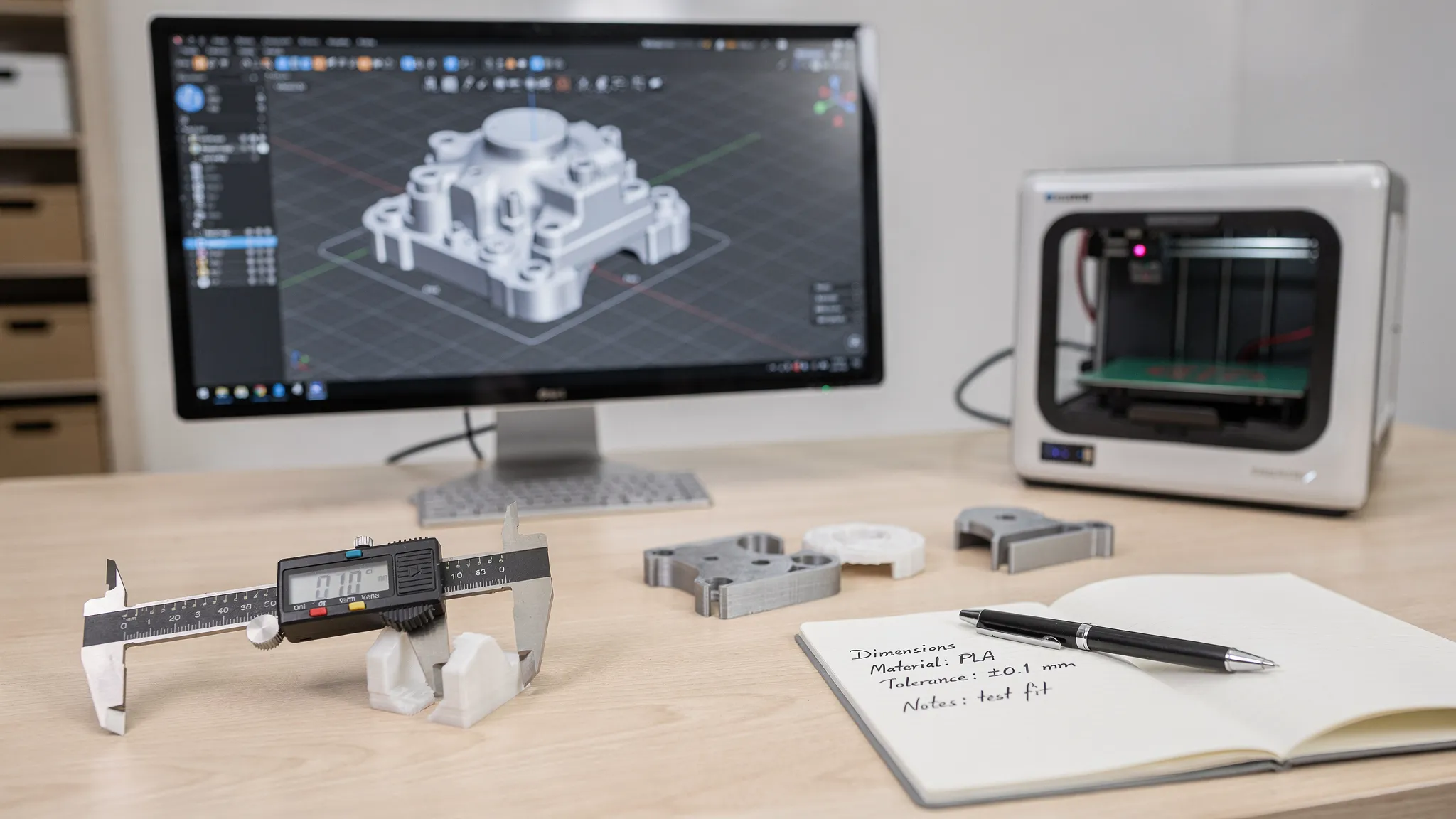
A clean 3D model does not automatically become a clean print. Before a printer ever starts moving, your file has to answer practical questions: What size is it? Is it solid? Are the walls thick enough? Will separate parts fit together? Does the material match the job?
That is why preparing 3D files for 3D printing is less about “saving as STL” and more about giving the printer, slicer, and print service a model that can be made reliably. Whether you are ordering a custom part, prototyping a product, or sending a decorative model to print, a few checks can prevent failed prints, surprise costs, and disappointing details.
Use this workflow before uploading your file or requesting an estimate.
Start with the purpose of the part
Before you repair geometry or export anything, define what success means. A display figure, replacement bracket, tabletop terrain piece, enclosure, and product prototype all need different preparation.
A decorative model may prioritize surface detail and finish. A functional part may need specific strength, heat resistance, screw clearance, or repeatable dimensions. A prototype may only need to prove fit, while a final part may need cleaner surfaces and tighter tolerances.
Write down the part’s job in one or two sentences. For example: “This is a wall-mounted remote holder for indoor use,” or “This is a prototype hinge cover that must snap over an existing plastic part.” That short description helps you choose file format, material, orientation, and tolerances more intelligently.
If you are sending the model to Firecloud Printz, include that context with your file. The more the print team knows about the intended use, the easier it is to recommend material options, identify printability issues, and provide a useful estimate.
Choose the right file format
Different 3D file formats carry different information. Some are best for basic printing, while others preserve design intent, units, colors, or assembly data.
| File format | Best for | What to check before sending |
|---|---|---|
| STL | Most single-material prints and simple models | Units, scale, mesh quality, watertightness |
| 3MF | Modern print-ready files with units and extra data | Confirm the slicer or service accepts it |
| OBJ | Models with color, texture, or sculpted detail | Make sure textures are included if needed |
| STEP/STP | CAD parts, mechanical designs, and engineering review | Useful when dimensions may need editing |
| ZIP | Projects with multiple parts or texture files | Include all related files and notes together |
STL is common, but it does not store units. A part modeled in inches may open as millimeters, or vice versa, if the recipient does not know the intended scale. 3MF is often better for print-ready work because it can preserve units and other useful data, but not every workflow uses it by default.
If you are unsure, send both a mesh file such as STL or 3MF and an editable CAD file such as STEP when available. The mesh is useful for slicing, while the CAD file gives the print team more flexibility if a small adjustment is needed.
For a deeper breakdown of file types, Firecloud Printz also has a guide on 3D file formats and common issues.
Confirm scale and units
Scale errors are one of the most common and avoidable problems in 3D printing. A model that looks correct on screen can arrive 25.4 times too large or too small if inches and millimeters get confused.
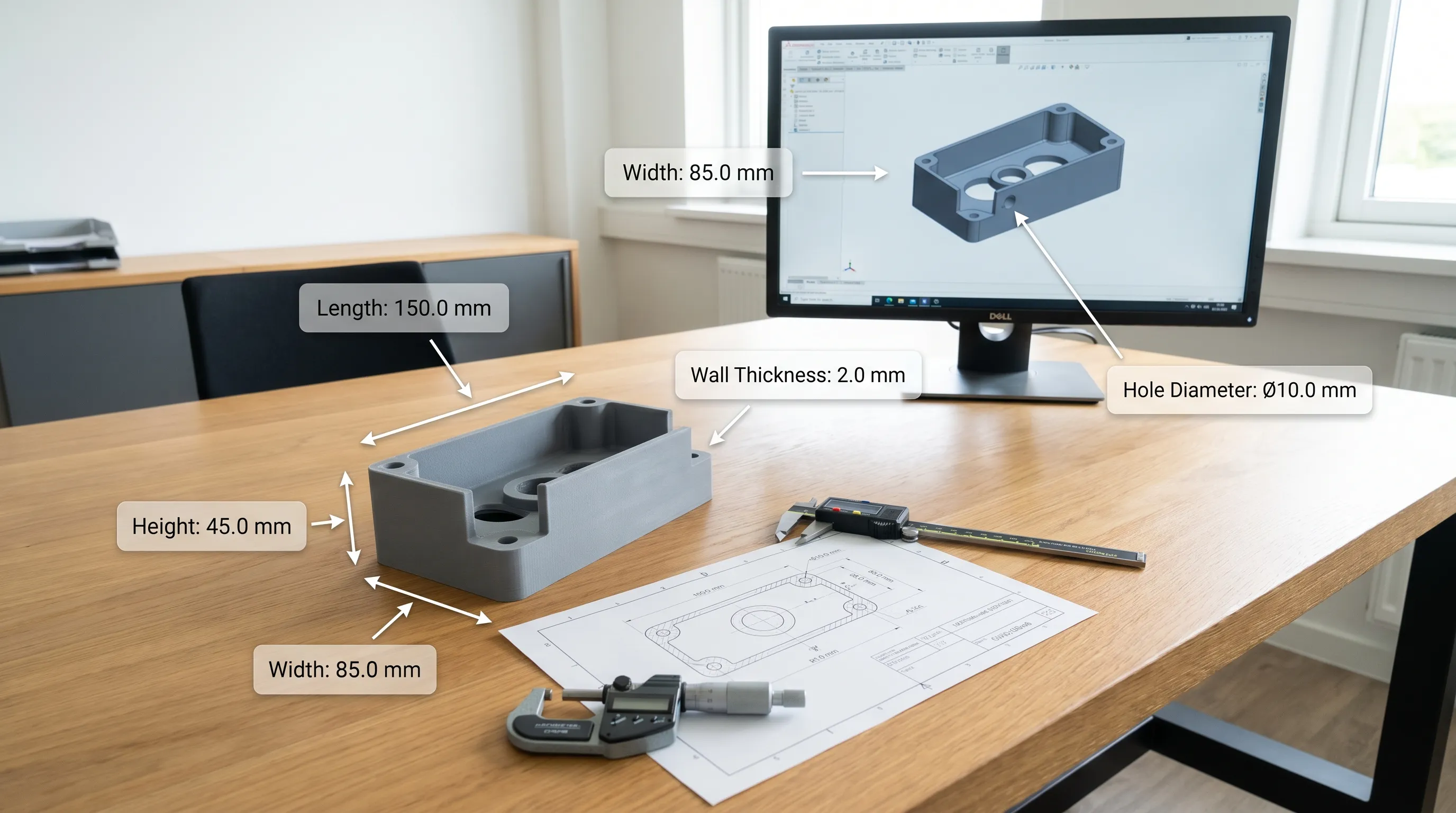
Before exporting, check the model’s overall dimensions in your design software. Do not rely only on how it looks in the workspace. Measure the bounding box, plus any critical features such as holes, slots, pegs, tabs, lids, or mating surfaces.
Include a simple note with your file, such as: “Final part should be 120 mm wide, 48 mm deep, and 32 mm tall.” If one dimension is more important than the others, say so. For artistic models, height may be the controlling dimension. For replacement parts, hole spacing or clip width may matter more.
A good habit is to add a small reference object during review, then remove it before final export. For example, compare your model to a 25 mm cube or a known screw diameter. This catches many scale mistakes before the file leaves your computer.
Make the model watertight and manifold
A printable mesh needs to represent a real, enclosed volume. In practical terms, the model should not have holes, missing faces, internal loose surfaces, or edges that connect in impossible ways.
You may hear this described as “watertight” or “manifold.” Imagine filling the model with water. If water would leak through gaps in the surface, the slicer may not understand what is inside and what is outside. That can cause missing walls, strange toolpaths, hollow sections, or a failed slice.
Common geometry problems include:
- Open edges where surfaces do not connect
- Non-manifold edges shared by too many faces
- Reversed normals that make surfaces face inward
- Internal walls left behind after joining shapes
- Floating shells that are not connected to the main model
- Intersecting bodies that look joined but are not truly merged
Most slicers and mesh repair tools can detect basic issues. Automatic repair can work well for small gaps, flipped normals, and simple mesh errors. However, automatic repair is not a design substitute. If a part has thin surfaces, impossible intersections, or missing features, it may need manual cleanup in CAD or modeling software.
After repair, reopen the exported file and inspect it again. Sometimes the repaired version changes small details, closes holes you intended to keep, or removes delicate features.
Check wall thickness before you slice
A 3D model can contain surfaces that look solid but have no physical thickness. That may work for rendering, but it will not print as a durable object. Every printable feature needs enough material for the chosen process, nozzle size, resin behavior, and end use.
For FDM printing, walls should usually be thick enough for multiple perimeter lines. For resin printing, delicate detail is possible, but unsupported thin features can warp, crack, or break during cleaning and curing. For functional parts, thicker walls, ribs, fillets, and proper load paths matter more than a high infill percentage.
| Feature | Why it matters | Practical preparation tip |
|---|---|---|
| Outer walls | Affect strength and surface durability | Avoid paper-thin shells, especially on large parts |
| Pins and pegs | Easy to snap if too thin | Increase diameter or use metal hardware if needed |
| Text and logos | Can disappear if too shallow or small | Emboss or engrave with enough depth and width |
| Clip features | Need flexibility without cracking | Add radii at the base and test fit before final production |
| Large flat panels | Can warp or oil-can under stress | Add ribs, curvature, or split the part into sections |
Exact minimums vary by material and printer, so treat online numbers as starting points, not guarantees. If the part must be strong or fit something else, ask for a printability review before committing to a final run.
Build in realistic tolerances and clearances
Digital parts can touch perfectly. Printed parts cannot. Material shrinkage, layer lines, resin curing, machine calibration, and surface finish all affect fit. If two parts are supposed to slide, snap, rotate, or assemble, they need clearance.
A common beginner mistake is modeling a peg at exactly 10 mm and a hole at exactly 10 mm. In the file, that looks perfect. In real life, it may fuse, scrape, or not fit at all.
Here are general starting points for non-critical prototypes:
| Fit type | Typical starting clearance | Notes |
|---|---|---|
| Tight press fit | 0.1 to 0.25 mm per side | Test first, depends heavily on material and orientation |
| Sliding fit | 0.2 to 0.5 mm per side | Better for lids, trays, and removable covers |
| Moving joint | 0.3 to 0.6 mm or more | Needs testing, especially for print-in-place designs |
| Screw clearance | Use standard clearance hole references | Printed holes often need drilling or design compensation |
If a dimension is critical, identify it in your notes. For example: “The two mounting holes must align with M4 screws on an existing bracket, center distance 64 mm.” That tells the print team which features deserve extra attention.
For parts that must fit an existing object, send photos with a ruler or caliper visible when possible. Measurements are better than photos alone, but photos help explain how the part will be used.
Reduce unnecessary supports where you can
Supports are sometimes unavoidable, especially for complex shapes and resin prints. Still, every support has a tradeoff. Supports add print time, material use, cleanup work, and potential surface marks.
When preparing your file, look for steep overhangs, floating islands, deep internal cavities, and details that face downward. If a feature does not need to be shaped that way, redesign it to be more self-supporting.
Small changes can make a big difference. A 90-degree overhang can become a 45-degree chamfer. A flat horizontal ceiling can become an arch or angled roof. A complex part can be split into two simpler pieces and assembled after printing. A hidden surface can accept support marks more easily than a visible front face.
Do not rotate the model randomly before export just to “make it fit.” Orientation affects strength, surface quality, support placement, and cost. If you have a preferred orientation because of appearance or strength, include that note. If not, leave orientation decisions open so the print team can choose the best setup for the process.
Prepare assemblies as separate parts
If your project includes multiple pieces, export each printable component clearly. Do not send a full assembly as one fused mesh unless you actually want it printed as one object.
For assemblies, label files with simple names: lid_v2.stl, base_v2.stl, left_clip_v2.stl, and right_clip_v2.stl. If parts need to fit together, include an assembled reference image or a STEP file of the full assembly.
Pay special attention to print-in-place designs. These models include moving clearances directly in the file, such as hinges, chains, or articulated figures. They can be impressive, but they are also more sensitive to printer settings and material behavior. If reliable motion matters, mention that the part is intended to move after printing.
Match the file to the material and environment
Material choice should influence the file before export. A model designed for PLA may need changes if it will be printed in PETG, resin, TPU, nylon, or another material. Heat, moisture, sunlight, flex, impact, and skin contact all change what “print-ready” means.
A useful mental model is to think about real product environments. For example, warm-air herbal vaporization devices depend on controlled airflow, temperature, cleaning, and user contact. If you were designing an accessory around a similar environment, you would need to specify whether the part is decorative, structural, heat-adjacent, or handled frequently.
The same logic applies to everyday prints. A desk organizer has different requirements than a car interior clip. A cosplay prop has different requirements than a replacement appliance knob. A planter, outdoor hook, or electronics enclosure needs the right combination of geometry, material, and finish.
Also be cautious with food, drink, medical, and safety-related applications. Many 3D printed surfaces have layer lines or pores that are difficult to sanitize. Some materials may not be appropriate for heat, food contact, or prolonged skin contact. When in doubt, describe the use case clearly and ask before printing.
Clean up file complexity without destroying detail
More polygons do not always mean a better print. If a mesh is too low resolution, curves may look faceted. If it is excessively dense, the file becomes hard to repair, slow to slice, and difficult to edit.
The goal is appropriate resolution. Smooth visible curves should have enough geometry to print cleanly at the intended size. Tiny details below the printer’s practical resolution do not need millions of triangles.
Before exporting, inspect curved surfaces, text, logos, and sculpted details at the final physical size. A highly detailed miniature may need fine mesh resolution. A simple mechanical spacer does not.
If you are reducing file size, use decimation carefully. Aggressive reduction can flatten curves, distort holes, or damage small features. Save a copy of the original file before simplifying the mesh.
Run a slicer preview or printability check
Even if you are not printing the file yourself, opening it in a slicer can reveal problems quickly. The slicer preview shows how the model becomes layers, which is often where hidden issues become obvious.
Look for missing sections, unexpected gaps, single-line walls, unsupported islands, strange internal geometry, and features that disappear at certain layers. If a hole closes up, a peg becomes too thin, or a logo vanishes, go back to the model rather than hoping the printer will solve it.
A slicer preview is not a final quality guarantee, but it is one of the fastest ways to catch obvious issues. It also helps you understand why orientation, wall thickness, and supports affect price and finish.
Package your files with notes
Good file preparation includes good communication. A print service should not have to guess scale, use case, quantity, or finish expectations from the file alone.
When you are ready to request a print, include:
- The final 3D file or files
- Units and overall dimensions
- Quantity needed
- Intended use of the part
- Preferred material or performance requirements
- Color or finish preferences, if important
- Critical dimensions or fit requirements
- Photos, sketches, or reference images when helpful
- License or permission details for designer models, if relevant
For custom orders, this information can speed up estimates and reduce back-and-forth. It also helps prevent a part from being printed beautifully but incorrectly for the job.
Common file issues and how to fix them
| Issue | What it looks like | Best next step |
|---|---|---|
| Wrong scale | The part imports tiny or huge | Confirm units and provide target dimensions |
| Open mesh | Slicer shows missing walls or holes | Run mesh repair, then inspect manually |
| Thin walls | Features vanish in preview | Thicken the geometry or change the design |
| Fused moving parts | Hinges or joints print stuck | Add clearance and test a small sample |
| Too much support needed | Visible surfaces may be scarred | Reorient, split, or redesign overhangs |
| Excessive file size | Software becomes slow or unstable | Simplify mesh carefully while preserving detail |
| Missing textures | Color model opens plain gray | Send OBJ, MTL, and image files together in a ZIP |
Many problems are easier to fix before printing than after. If a feature is critical, prototype that area first or request guidance before ordering multiple copies.
Final pre-upload checklist
Before you send your file, take five minutes to review it from a manufacturing perspective. This is the fastest way to avoid preventable delays.
- The file opens correctly in a viewer or slicer
- Scale and units are confirmed
- The mesh is watertight or the CAD file is editable
- Walls, pins, text, and details are thick enough
- Assemblies are separated into printable parts
- Clearances are included for moving or mating features
- Critical dimensions are identified in notes
- Material and environment requirements are described
- Licensing or designer permission is clear when applicable
- The latest version is named clearly
If you can check every item, your file is much more likely to move smoothly from estimate to finished print.
Frequently Asked Questions
What is the best file type for 3D printing? STL is widely accepted and works well for many models, but 3MF is often better when you want to preserve units and print-related data. STEP is useful for mechanical parts that may need review or editing.
Do 3D files for 3D printing need to be solid? Yes, printable models should represent a closed volume with real thickness. Surface-only models, open meshes, and non-manifold geometry often cause slicing or printing problems.
How do I know if my walls are thick enough? Check the part’s material, process, and purpose. A delicate display detail can be thinner than a functional bracket, but every feature still needs enough thickness to print and survive handling.
Can a print service fix my file? Minor mesh repairs are often possible, but design problems may require remodeling. If the issue affects strength, fit, scale, or missing geometry, it is better to address it before printing.
Should I send one file or multiple files for an assembly? Send separate printable files for each part, plus an assembled reference if possible. This makes quoting, orientation, and fit review much easier.
Ready to turn your file into a finished print?
Preparing a file well saves time, money, and frustration. If you have a model ready, or you are not sure whether it is print-ready, Firecloud Printz can help turn digital designs into high-detail custom prints with material guidance, order estimates, and support throughout the process.
Visit Firecloud Printz to request help with a custom 3D printing project or browse ready-made designer-authorized prints.
